
Broadcast: sound that is not your voice
A browser tab with a webinar, a line input from the desk or a USB device. The room translates sound that already plays on your computer.
Translating a neighbouring window All plans
The point of this room: it takes the sound already playing on your computer and translates it live. A webinar, a lecture, a film, a conference stream - anything open in a neighbouring tab or window.

- 1Open the stream in a neighbouring tab and leave it playing - you do not need to switch tabs, the sound goes on in the background.
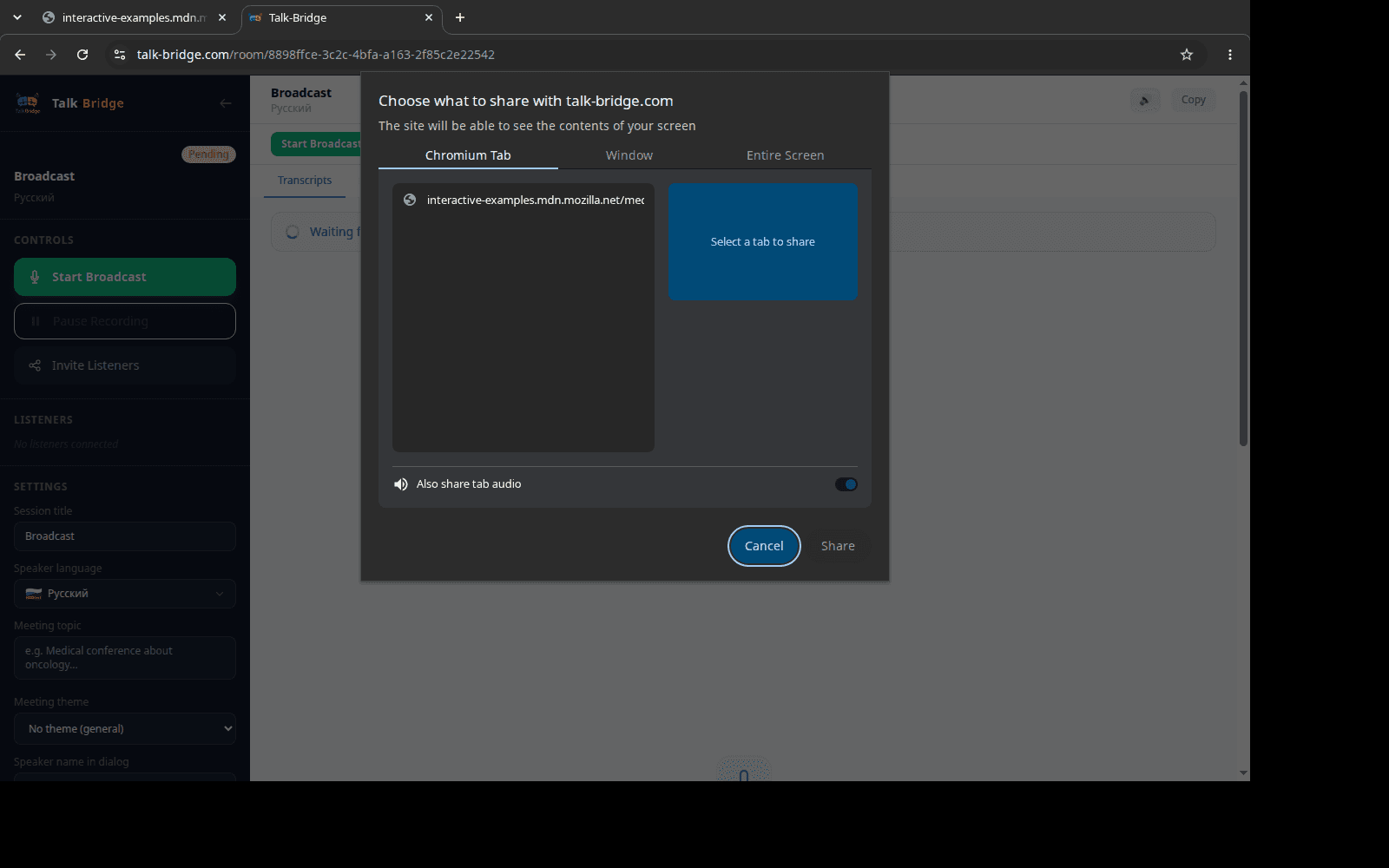
- 2In the room choose the source «Browser tab» and press «Start broadcasting» - the browser will ask what to share.
- 3Pick the tab you need and be sure to leave the tab-audio switch on. Without it the room receives a silent picture and there is nothing to translate.

Tony: if you listen to the stream through speakers, the room hears itself and translates its own translation. Headphones settle this once and for all.
What the browser asks All plans
The picker window is drawn by the browser itself, not by Talk-Bridge. Three tabs - a tab, an application window and the whole screen; the switch at the bottom is about sound. We receive only what you shared, and only while the broadcast runs.
Use headphones
If the voice-over plays through speakers, the room hears itself and translates its own output. And keep in mind you are responsible for the rights to the content you translate and pass on to listeners.
Any audio input of the computer All plans
The second path is to take the sound from a device connected to the computer: a line input, a USB interface, a mixing desk. This is the usual case for a hall: the speakers' microphones are already mixed on the desk, and the room receives a finished feed rather than the echo of the room.
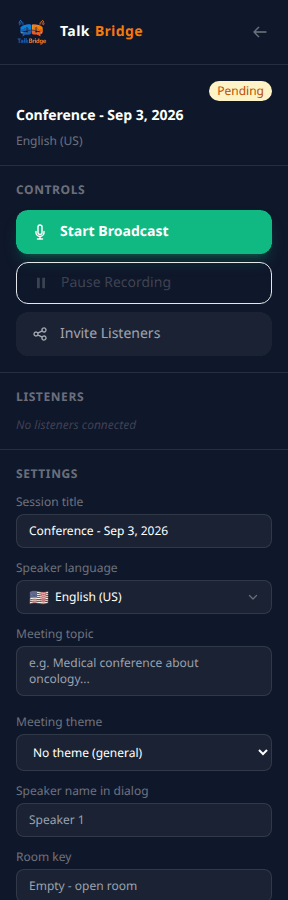
- 1Choose «Input device» and the right input from the list - the room will listen exactly to it.
- 2Level matters more than microphone quality: a quiet signal is recognised worse than any noise.
- 3Recognition runs in the cloud by default; the local model is for a weak connection and recognises less accurately.

Sofia: you are responsible for the rights to what you translate and pass on to listeners. Someone else's paid webinar is better not re-broadcast.
When you need a broadcast
How is this different from a live talk? There a lapel mic is clipped on a person and the room hears them directly - the setup is simple. Here the sound is captured inside the computer itself: more settings, but you can translate what you are not saying yourself.
The broadcast room All plans
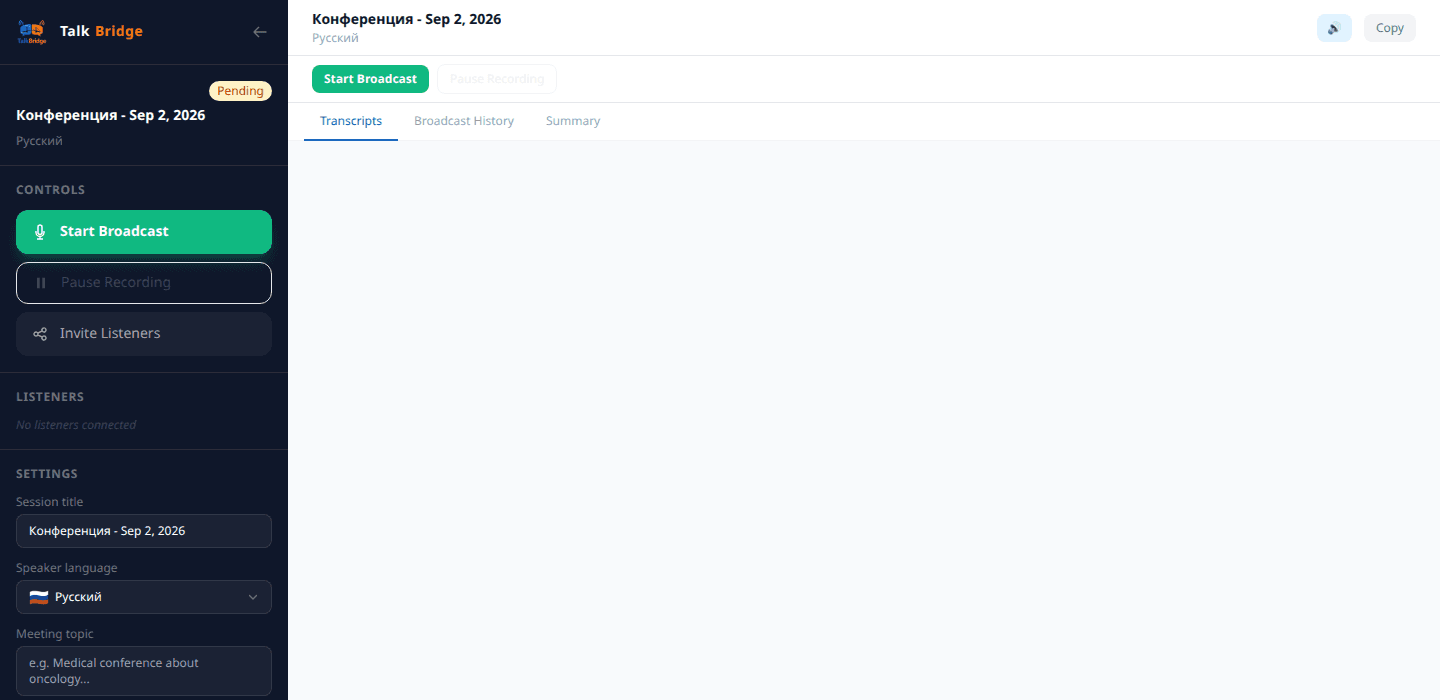
Everything works as in a conference: the board shows the recognised phrase and its translations, listeners join by the same link.
- 1A webinar, an online conference or a stream open in a browser tab.
- 2A hall: sound comes from the desk through a line input or a USB interface.
- 3This room type has no presets of its own - that is normal, everything is set inside the room.